Epiq Discover Version 4.8 Release Notes (June 2026)
This release contains updates and improvements to Epiq Discover. The following notes highlight new enhancements to Epiq Discover and provide a list of bugs addressed in this release.
Release Highlights
Release 4.8 contains the following features, as well as additional enhancements listed in this document. The following sections contain details about these features and enhancements.
-
Domain Analysis. Added the Domain Analysis feature, which provides an overview of domain-level communication across email documents. This feature helps you identify domains with high email volumes, junk domains, and privilege domains, and allows you to manage junk and privilege domains.
-
. Users can now review and redact Excels using the Native Excel Viewer.
-
. Added the ability to automatically apply custom coding to documents based on keyword hits in specific fields.
-
Conditional coding for coding forms. Coding forms now support conditional coding, allowing you to control when fields appear or are mandatory based on values selected in other fields.
-
Near Dupe and Threading. You can now run Near Dupe and Threading (NDT) on selected documents through Document Actions in Inspect and Review. When run through Document Actions, the system applies near duplicate detection to both email and non‑email documents and applies email threading to email documents.
-
Quick export of document metadata to CSV. In the Grid view and the Undocked Document List, you can now export document metadata and their values for the currently visible metadata columns with a single click.
-
Epiq Assist. You can now view top referenced documents directly in the Document List from an Epiq Assist chat response.
Enhancements in Release 4.8
This release contains the following enhancements and updates.
Process
Deduplication update
Parent Duplicate ID now generates the same deduplication results as Promotion. (1052655, 1072190, 1069144)
S/MIME encrypted email processing
The system now processes S/MIME encrypted email files (.p7m, .eml, .msg) without decrypting or extracting content. It then marks the Exception field as Encrypted File. (982650)
Analyze
Domain Analysis
The new feature provides an overview of domain-level communication across email documents. It helps you identify domains with high email volumes, junk domains, and privilege domains. This feature also lets you manage junk and privilege domains.
The system identifies junk emails based on the junk social score. A low social score indicates that a domain sends significantly more emails than it receives.
Social score calculation:
Social Score of a domain = (Received messages / (Received + Sent messages)) × 100
Litigation Support or users with higher roles can set the social score threshold. The system marks a domain as junk when its social score falls below the configured threshold.
The system identifies privileged emails by automatically analyzing the domain in the email header and comparing it against a carefully curated global list of law firm domains.
The following list provides related topics.
(1031295, 1031296, 1031297, 1031298, 1031722, 1033610, 1035118, 1035119, 103512, 1035124, 1035125, 1035126, 1035127, 1035128, 1035129, 1035130, 1035131, 1035132, 1040846, 1042374, 1057804, 1052818, 1055141, 1053189, 1055960, 1041577, 1050817)
Inspect/Review
Feature Preview: Native Excel Viewer
In Inspect and Review, added a new feature called Native Excel Viewer. Using this, you can review and redact Excels directly within the native viewer. This viewer enables you to interact with Excels in their native format, supporting XLSX, XLS, XLSM, XLSB, XLTM, or XLTX files. It offers redaction tools, which allow you to redact content, apply redaction labels, choose fill colors, search for specific content, view in transparent mode, zoom, print, or delete redactions. You can download the original native, redacted native, or redacted content in transparent mode as needed.
Note that the Native Excel Viewer is available as a Feature Preview and is not enabled by default. Enable this option in Project Settings to try the redesigned experience, with additional enhancements coming soon.
In the document grid, when you select the Native option, Excels automatically open in the Excel Viewer, while all other file types open in the standard document viewer.
You can apply redactions by selecting a range of cells. When applying redactions, you can choose any of the set in or add a new one. Once added, the new redaction label is also available under in . Refer to Modify review settings and highlights for more information.
When opening a file in the Excel Viewer, the system displays all hidden rows, columns, and sheets, and displays formula cells as values. You must select both a redaction label and the content before clicking the Redact icon. By default, the system fills redacted cells with black.
When you apply redactions to XLSX, XLS, XLSM, XLSB, XLTM, or XLTX files, the system automatically saves your changes. Additionally, when you switch from the Excel Viewer to another tab, the system automatically saves any applied redactions. These actions update metadata fields such as Has Redactions and Redaction Type, which also appear in the User Audit History Report and Document History.
You can enable or disable the Excel Viewer in the Project Settings under Document List and Viewer Settings. By default, this option is disabled for new projects.
The following limitations apply when using the Native Excel Viewer.
-
The Native Excel Viewer supports XLSX, XLS, XLSM, XLSB, XLTM, or XLTX file sizes up to 50 MB. For larger files, the system opens the file in the original viewer.
-
You cannot perform redactions on a file if it is protected.
-
You cannot resize columns or rows.
-
Charts created outside of Excel via third-party software may display incorrectly and cause misaligned redactions.
-
If the reason text requires more room than provided in the redacted area, it will extend beyond the redaction border.
The following list provides related topics.
(1002211, 1003513, 1005719, 1005721, 1006374, 1025936, 1026500, 1026501, 1026513, 1026516, 1033912, 1053871, 1053872, 1060002, 1080215)
Conditional coding for coding forms
Coding forms now support conditional coding, allowing you to control when fields appear or are mandatory based on values selected in other fields. As reviewers code the documents, the coding form responds in real time, ensuring the correct fields are displayed or enforced.
You can configure up to 5 levels of nested conditional rules to support complex coding logic. For example, you can configure the coding form to make the Privilege field mandatory when coding a document as Responsive. You can also make the Privilege Type field mandatory when coding a document as Privileged. This ensures consistent and complete coding by reviewers. You can apply conditional coding only to the non-read-only fields and add up to 10 conditional rules per field.
To add conditional coding rules, refer to Create coding forms.
In this release, conditional coding does not support the following.
-
Bulk tag document action and quick tag functionalities.
-
Use of logical operators, wildcards, proximity searches, and fuzzy searches for text fields.
-
Use of Date, Keyword Hits, Keyword Hits Unique, and production related fields (such as Begin Bates and End Bates) when building rule criteria.
(1036151, 777760, 999902, 752950, 999294, 782982, 1016675, 1027403, 1036054, 1036203, 1036201, 999292, 1032409, 1036148, 1010080, 1016290, 998500, 1010084)
Added the ability to custom categorize documents
Added the ability to automatically apply custom coding to documents based on keyword hits in specific fields. To categorize documents, specify the search field, search term, destination field, and destination value according to the structure defined in the provided CSV template.
When you run the job, the system searches for the search term in the search field and then codes the destination field with the destination value for all documents that contain keyword hits. We recommend limiting the number of terms in the CSV template to no more than 50,000.
Custom document categorization helps you search for documents using the coded values. It also lets you narrow the data set more effectively and break down the data for analysis and review.
The following list provides related topics.
(1020439, 1021324, 1011093, 1021322, 690274)
Near Dupe and Threading update
You can now run Near Dupe and Threading (NDT) on selected documents through the NDT document action in Inspect and Review. When you run the NDT document action, the system applies Near Duplicate Detection to both email and non‑email documents and applies Email Threading to email documents. You can choose to run Near Duplicate Detection, Email Threading, or both, and you can include or exclude email documents from Near Duplicate Detection. You can also set the similarity threshold for Near Duplicate Detection.
Additionally, in Project Settings, you can configure the similarity threshold for the Near Duplicate Detection and enable or disable threading analysis for emails without a Message ID. These settings apply to both NDT during promotion and NDT document action.
If emails are skipped from threading when you disable threading analysis for emails without a Message ID, the Processing Information field displays Email threading skipped due to missing Message ID. (875852)
The following list provides related topics.
AI Model update
Your System Administrator at Epiq can now create client-specific and project-specific Epiq AI accounts from Epiq Discover. (995355, 995360)
Quick export of document metadata to CSV
In the Grid view and the Undocked Document List, you can now export document metadata and their values for the currently visible metadata columns with a single click. The export includes metadata from all documents across all pages, regardless of search queries or column filters. The export does not include the coding form fields. (1041982)
The following list provides related topics.
-
To quickly export document metadata to CSV in Inspect, refer to Export document metadata to CSV.
-
To quickly export document metadata to CSV in Review, refer to Export document metadata to CSV.
Text viewer update
Improved the Text Viewer to handle extracted text files larger than 3 MB. The viewer now remains responsive in both docked and undocked views and displays a message that additional search results may continue to load dynamically until the full text is not loaded. (1021230)
OCR update
In the OCR document action, added a new field named Redacted Text in the Text Destination field. The OCR option for Redacted Text is updated to Populate Redacted Text destination when redactions are present. This option is selected by default, and the system automatically sets the to . When selected, the system saves the output to if redactions are applied to the image. When this option is unselected, you can select , , or from the dropdown. The generated redacted text appears in the Text viewer as a Redacted Text option. It is also available in the Search Builder with supported operators. (1010676)
Document List updates
Filter update
In the Grid view and the Undocked Document List, the select type column filter now includes the Select All / None control. (1053569)
Document identifier update
The Document Identifier column no longer appears in the document grid, either in Grid view or in the Undocked Document List. Instead, the system displays the file extension and icons within the first field column selected in  >Manage Fields.
-
The system displays the file extension icon to the left of the field value.
-
The system displays the relational field icon to the right of the field value.
-
You can select any field type as the first column, including fields without values and Quick Tags.
-
You can sort, filter, and export the first field.
The Document Grid Settings now include the following toggles.
-
File Extension. Move the toggle to the right to show the file extension, or to the left to hide it.
-
Relational Field Icons. Move the toggle to the right to show relational field icons, or to the left to hide them.
Also, removed the Display Density option from Document Grid Settings .
(1068652 1068679 1068683)
Folder update
You can now organize folders by dragging and dropping them. (997823)
-
To move a folder into a folder, hover over the folder name, click
 , and drag and drop it into the desired folder.
 -
To move a folder out of a folder and make it top-level, click
, drag it out, and drop it when the  icon appears.
 -
When you move a folder or subfolder to a new parent (normal or secured), the system removes any explicit permissions on the folder and applies the visibility and access settings of the destination folder.
Search Builder Update
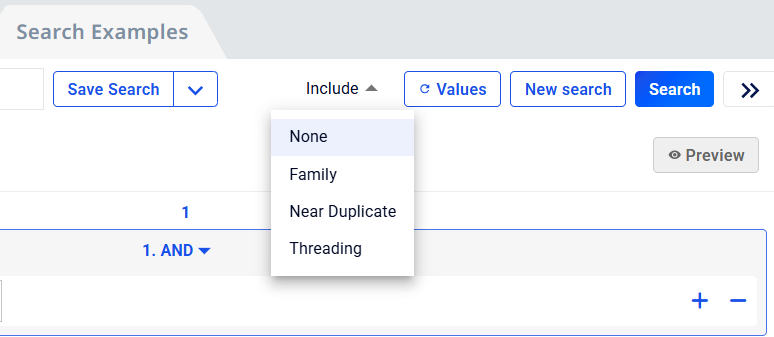
In Search Builder, you can now include related documents by email threading or near duplicates when searching, in addition to the existing family option. To include related documents by email threading, family, or near duplicate, click Include and select the required option. (928524)
Epiq Assist update
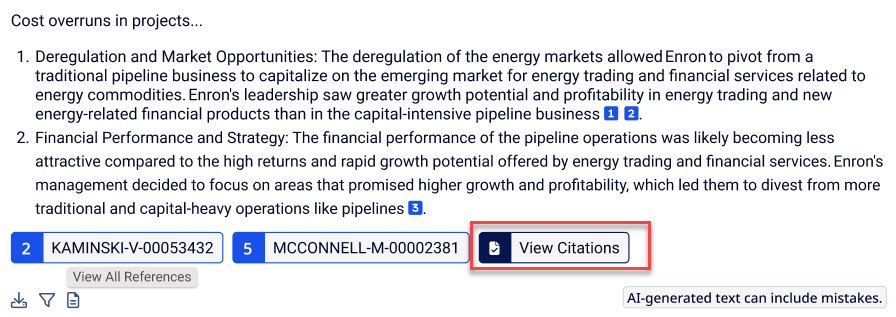
You can now view top referenced documents directly in the Document List from a chat response. To view the top referenced documents, click View Citations under the chat response. (1068101)
Export production update
The Missing Document report now shows the reason the system failed to export selected documents when you use Document Actions>Export>Export Production. (1049080)
Produce
Feature Preview: Production Template update
In the Production Template, you can now choose to produce redacted Excels in their native format. To enable this feature on the tab, select the checkbox. Selecting this option automatically enables the inclusion of any redacted native Excels, allowing you to export redacted XLSX, XLS, XLSM, XLSB, XLTM, or XLTX files directly.
In the tab, added a new field called in as the first precedence by default for all productions. Also, added a new checkbox. This option is enabled by default and is applicable only to natively redacted Excels.
Additionally, in , updated the label from to . Also, added an option . Whenyou select this option, the system checks if any documents in the Production has manual native redactions. The system also verifies whether the checkbox is enabled in the tab of the Production Template. (1005721, 1088120)
Administration
Feature Preview: Enable Excel Viewer in Project Settings
In Account Menu>Project Settings>Document List and Viewer Settings, added the ability to enable the Excel Viewer. When enabled, XLSX, XLS, XLSM, XLSB, XLTM, and XLTX files open in the Excel Viewer instead of the default original viewer. By default, this option is disabled for new projects. (341290)
To enable the Excel Viewer, refer to Enable Excel Viewer.
Project deletion update
You can now delete archived projects without restoring them. To delete an archived project, go to Client Settings>Archived Projects, click Delete Archive for the project you want to delete, and confirm. The confirmation dialog box shows the number of documents in the project and the database name. (673935, 1049940)
Get Assistance update
In Get Assistance, increased the maximum number of followers from three to 15 for Support, Training, and Professional Services request types. (1051566)
Bugs fixed in Release 4.8
The following bugs were resolved in this version.
|
Number |
Title |
|---|---|
| 644360 | Jobs | Cancel active job when soft deleted |
| 916795 | Project deletion | Force stop all jobs |
| 948259 | NDT | Email files without subject don't have Thread ID populated |
| 954023 | Transfer to Relativity | Time zone offset mismatch |
| 973651 | Search Builder | Search Builder slow load time and errors |
| 1027289 | Native Viewer | Download button fails due to illegal characters in file name and extension |
| 1027528 | Administration | Improve the authentication and password reset process |
| 1032263 | Production | Remove trashcan icon from jobs pages |
| 1033495 | DataHub | Export job stuck for more than 24 hours due to duplicate entry error in DataHub archive process |
| 1033529 | Tag | User unable to tag documents when quick tag action is performed on newly created project, in the API request the field name is sent as (old project field) instead of new field name |
| 1036885 | Production delete | Production delete is completing with error |
| 1037786 | Epiq Internal Feedback | TSA | Inspect/Review | Tally/Count | When the document list is generated from a nested search query, the TSA aggregate results are not accurate/not working |
| 1038633 | Epiq Internal Feedback | Project Settings | Review | Add pop-up to save unsaved work product in "review" tab of project settings for highlights and redactions |
| 1042740 | Search | Searching on a field containing " / " in the field name fails to return |
| 1049162 | Production Validation | View Images Results | Folder submission returns error "Request failed with status code 422" |
| 1051336 | Project Creation | project creation failure leaves behind Schema entries and Databases |
| 1053539 | Processing | Domain fields incorrectly populated with full email strings instead of domain-only values |
| 1054334 | Search | Searching on a field containing " ? " in the field name fails to return |
| 1057443 | Epiq Internal Feedback | Production - Production Template - Date / Time Formats dropdown scroll issue |
| 1057733 | Slack | Data folder paths getting truncated in dropdown menu without any indication |
| 1057889 | Coding Form | Unable to save document tags due to parser error in codingFormFieldValueCounts |
| 1059738 | Epiq Internal Feedback | In grid mode, at the end/bottom of doc list, when undocking viewer, grid list refreshes and puts user at the top of the document list page |
| 1061336 | Project | Previously viewed project loads instead of selected project |
| 1061592 | AI Model | AI model job concurrency and pause‑state handling |
| 1062446 | Fixed a cumulative indentation issue during email imaging to ensure readable output and stable page counts. |
| 1068423 | Login | User is able to login and enter a project when they are not active in MySql | Columns need to be in sync for StormedUser and StormedUserRole |
| 1070211 | Imaging | Certain EML quoted-printable text/html body images as HTML source instead of rendered email |
| 1070505 | Review | Documents Show “Document is too large to display. Download the Native to view.” |
| 1072624 | Highlights | "Is Not Null" logical query incorrectly highlights "IS" in Text view |
| 1073783 | Bulk Delete | Job has fragment errors, indicates completed successfully and documents not deleted |
| 1075688 | Document Grid | Incorrect sorting in manage fields available column |
| 1076357 | Processing | Processing completed with errors " Cannot read the array length because the return value of "com.aspose.note.Image.getBytes()" is null" for One note files |
| 1080869 | Production | Job stuck in spinning state when creating production with “Stamping by FileName” |
| 1082723 | Production download | Duplicate bates numbers reported in Production Load file (Quick Fix) |
| 1082999 | Production | Image validation issue due to template saved without slip sheet in image section |